
Your Wallet Lives in the IDE

No MetaMask. No Phantom. No browser extensions. The wallet is built directly into the editor sidebar. You create or import a wallet once, and it handles signing, chain switching, and balance queries for both EVM chains and Solana.
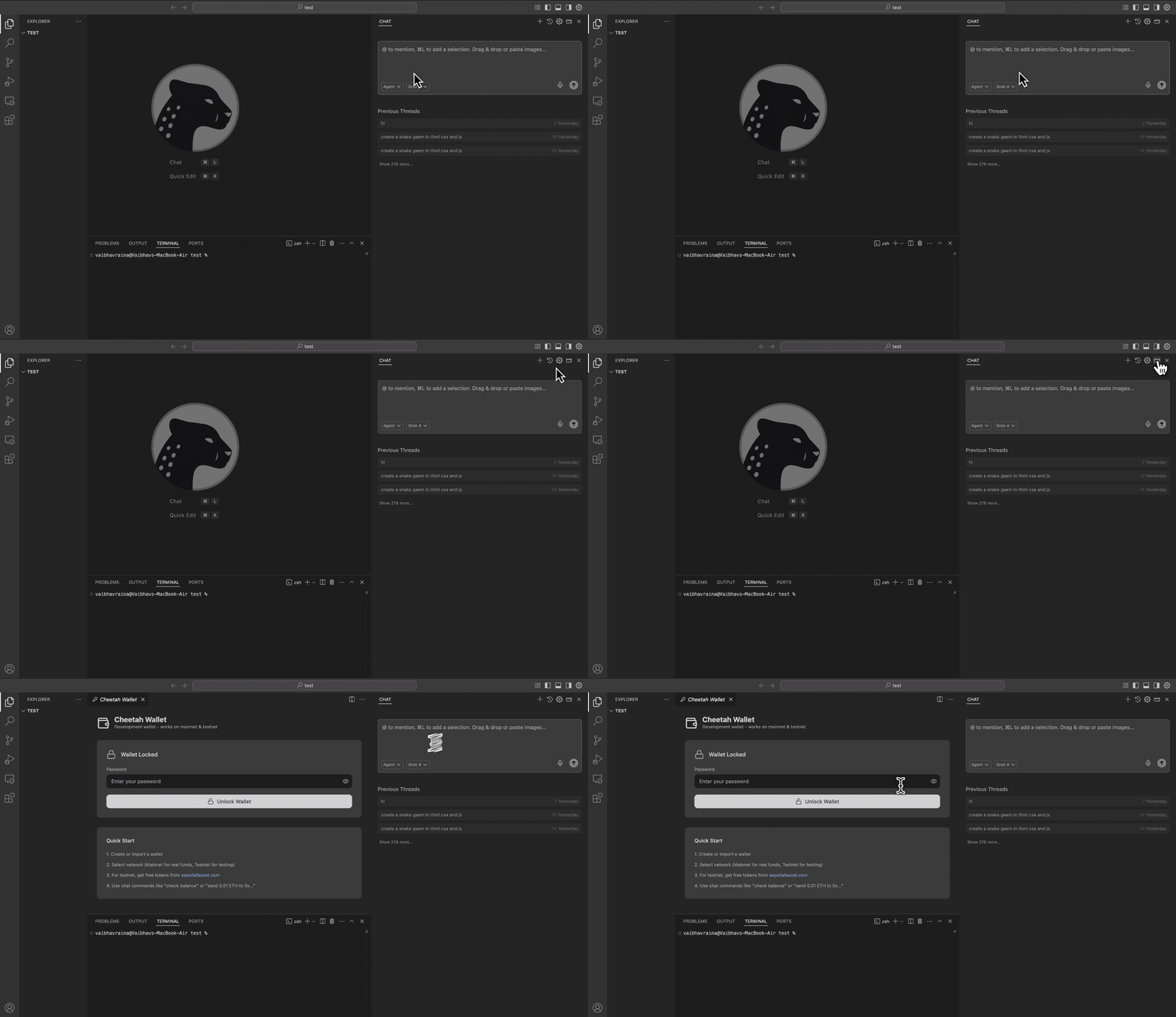
Opening the integrated wallet

Opening the Wallet

Click the wallet icon in the sidebar, or ask the AI:
"Open my wallet"
"Connect wallet"
The wallet panel shows your address, current network, and balance. From here you can switch chains, copy your address, and see transaction history.

Creating or Importing a Wallet

Create a New Wallet

If you don’t have a wallet yet, you’ll be prompted to create one. This generates:
  • An EVM address (0x…) for Ethereum, Polygon, Arbitrum, etc.
  • A Solana address (base58) for Solana networks
Both are derived from the same private key. You’ll set a password to encrypt the key locally.
Save your recovery phrase somewhere safe. If you lose it and forget your password, your wallet is gone.

Import an Existing Wallet

Already have a wallet from MetaMask, Phantom, or another tool? Import it:
"Import my wallet"
You can import using:
  • A private key (hex string)
  • A seed phrase (12 or 24 words)
Your key is encrypted with AES-256-GCM and stored in your OS keychain (macOS Keychain, Windows Credential Manager). It never leaves your machine.
On first launch of the app, macOS will show a Keychain access popup asking for your Mac login password. This is your operating system protecting your data — the app stores wallet keys and settings in the same secure vault as your Wi-Fi passwords and Safari credentials. Enter your Mac password and click Always Allow so you don’t get prompted again.

Switching Networks

The network dropdown in the wallet panel shows all available chains, grouped by category:
Local Development
  • Local EVM (Anvil at localhost:8545)
  • Local Solana (localhost:8899)
Testnets
  • Ethereum Sepolia, Polygon Amoy, BSC Testnet, Arbitrum Sepolia, Optimism Sepolia, Base Sepolia, Avalanche Fuji
  • Solana Testnet
Mainnets
  • Ethereum, Polygon, BNB Smart Chain, Arbitrum One, Optimism, Base, Avalanche C-Chain
  • Solana Mainnet
Or switch via chat:
"Switch to Sepolia"
"Switch to local EVM"
"Switch to Solana testnet"
Your EVM address stays the same across all EVM networks. Your Solana address is separate but also consistent across Solana clusters.

What is Local EVM?

Local EVM is a local Ethereum node powered by Anvil (part of Foundry) running at http://127.0.0.1:8545. When you start it:
  • You get pre-funded test accounts with unlimited ETH
  • Blocks confirm instantly (no waiting)
  • Gas is free
  • State resets when you stop the node
It’s the fastest way to develop and test contracts. No faucets, no waiting, no rate limits. Start it with:
"Start a local EVM node"

What is Local Solana?

Local Solana is a local Solana validator (solana-test-validator) running at http://127.0.0.1:8899. When you start it:
  • You can airdrop unlimited SOL to yourself
  • Transactions confirm instantly
  • State resets when you stop the validator
Start it with:
"Start a local Solana node"

Checking Balances

Native Tokens (ETH, SOL, MATIC, etc.)

"What's my balance?"
"Check my balance on Polygon"
The wallet panel also shows your balance for the currently selected network.

ERC-20 Tokens (EVM)

"Check my USDC balance"
"What's my balance of token 0x..."

SPL Tokens (Solana)

"Check my SPL token balance for mint address ..."

Sending Transactions

Send Native Tokens

"Send 0.1 ETH to 0x..."
"Send 2 SOL to ..."
The AI estimates gas, shows you the transaction details, and asks for confirmation before broadcasting.

Send ERC-20 Tokens

"Send 100 USDC to 0x..."

Send SPL Tokens

"Transfer 50 tokens (mint: ...) to ..."
For SPL transfers to new recipients, the associated token account is created automatically.

Signing Messages

"Sign the message 'Hello World'"
Message signing proves you own an address without sending a transaction. No gas cost. Commonly used for:
  • dApp authentication (Sign-In with Ethereum)
  • Off-chain signatures (order signing, permits)
  • Proving identity

Token Approvals (EVM)

Before a smart contract can spend your ERC-20 tokens, you need to approve it:
"Approve 0x... to spend 1000 USDC"
Check existing approvals:
"Check my token approvals for USDC"
Revoke an approval:
"Revoke approval for 0x... on USDC"
Avoid unlimited approvals. Approve only the amount needed for each interaction.

Airdrops (Solana Devnet/Testnet)

Need test SOL? Just ask:
"Airdrop 2 SOL"
This works on Solana devnet and testnet. Airdrops are rate-limited on public networks, so request 1-2 SOL at a time. On local Solana, there are no limits.

Exporting Your Keys

Need to use your wallet in MetaMask or Phantom?
"Export my private key"
"Export my Solana private key"
You’ll need to enter your wallet password. The key is displayed once — copy it and store it securely.

Security

  • Private keys are encrypted with AES-256-GCM (PBKDF2 with 900,000 iterations)
  • Keys are stored in your OS keychain, not in plain text files
  • The wallet auto-locks after 30 minutes of inactivity
  • The AI never asks for your private key or seed phrase
  • All signing happens locally — keys never leave your machine
This wallet is designed for development. For production deployments with significant funds, use a hardware wallet or multi-sig.

Quick Reference

ActionChat Command
Connect wallet"Connect wallet"
Check balance"What's my balance?"
Switch network"Switch to Sepolia"
Send ETH"Send 0.1 ETH to 0x..."
Send SOL"Send 2 SOL to ..."
Send tokens"Send 100 USDC to 0x..."
Sign message"Sign 'Hello World'"
Airdrop SOL"Airdrop 2 SOL"
Start local EVM"Start local EVM node"
Start local Solana"Start local Solana node"
Export key"Export my private key"