
Step 1: Download and Install
1
Download
Go to cheetahai.co and download the macOS installer.
2
Install
Open the
.dmg file. Drag Cheetah AI into your Applications folder.3
First Launch
Open Cheetah AI from Applications.macOS will ask for Keychain access — a system popup appears asking for your Mac login password. This is normal. The app uses the macOS Keychain to securely store your settings and wallet keys (the same vault that holds your Wi-Fi passwords and Safari credentials). Type your Mac password and click Always Allow so it doesn’t ask again.
4
Sign In
Sign in with your Google or GitHub account. This activates your subscription. Your code stays on your machine.
Step 2: Open a Project
PressCmd+O or go to File > Open Folder. Open any project folder — or create a new empty folder for this tutorial.
Step 3: Open the Chat
PressCmd+L. The AI chat panel opens on the left side. This is where you’ll do everything — ask questions, write code, compile, deploy, interact with contracts.
Step 4: Set Up Your Wallet
Look at the top of the sidebar. You’ll see a row of icons — new chat, history, wallet, and settings. Click the credit card icon (💳) in the sidebar header. This opens the wallet panel.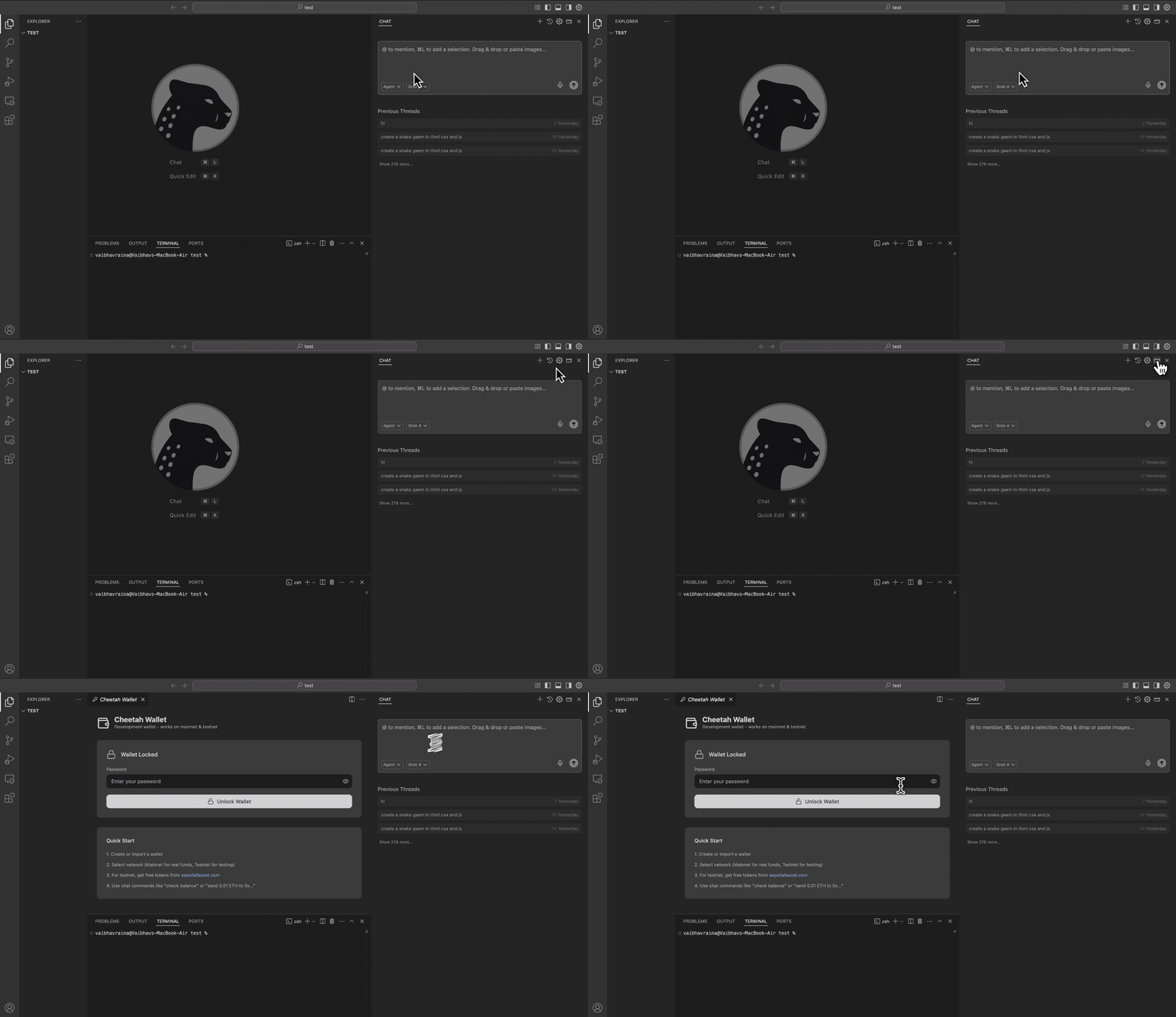
- Create New Wallet — generates a fresh wallet with both an EVM address (for Ethereum, Polygon, etc.) and a Solana address
- Import Existing Wallet — bring in a wallet from MetaMask or Phantom using your private key or seed phrase
Create a wallet now:
- Click Create New Wallet
- Enter a password (minimum 8 characters)
- Confirm the password
- Click Create Wallet
- Save your recovery phrase — write it down somewhere safe, then click “I’ve saved it, hide this”
- Your EVM address (0x…) — for Ethereum, Polygon, Arbitrum, etc.
- Your Solana address (base58) — for Solana networks
- Your balance — 0 for now
- A network dropdown — this is where you switch chains
Step 5: Pick a Network
Click the network dropdown in the wallet panel. You’ll see three sections:Step 6: Deploy Your First Smart Contract
Go back to the chat panel (Cmd+L). Make sure you’re in Agent mode (check the mode selector at the bottom of the chat input).
Type this:
- Write the contract — creates a Solidity file with OpenZeppelin imports
- Start a local EVM node — spins up Anvil (a local Ethereum node) at
localhost:8545 - Switch your wallet to the Local EVM network
- Fund your wallet with test ETH (free, unlimited)
- Compile the contract — runs the Foundry compiler, produces bytecode and ABI
- Deploy the contract — sends the deployment transaction to your local node
- Return the contract address — your contract is now live (locally)
Step 7: Interact with Your Contract
Your contract is deployed. Now talk to it. Type in the chat:totalSupply() function and returns the result. This is a read operation — free, no gas.
Now try a write operation:
mint() function on your deployed contract. Since you’re on a local node, gas is free and confirmation is instant.
Check your balance:
Step 8: Try Solana (Optional)
Want to try Solana too? Type:First time using Solana? The AI will need to install the Anchor toolchain (Rust, Solana CLI, Anchor). This takes 5-10 minutes but only happens once.
- Scaffold an Anchor project
- Start a local Solana validator at
localhost:8899 - Switch your wallet to Local Solana
- Fund your wallet with test SOL
- Compile the Rust program
- Deploy it and return the program ID
What Just Happened?
You just:- Set up a crypto wallet inside your IDE
- Wrote, compiled, and deployed a smart contract
- Interacted with it on-chain
- All without touching a terminal, writing a deployment script, or opening a browser extension
What’s Next
Now that you’ve got the basics, here’s where to go deeper:Web3 Overview
Understand the full development workflow — local, testnet, mainnet. EVM and Solana.
Wallet Guide
Switch chains, send tokens, manage keys, export to MetaMask/Phantom.
Smart Contracts
Foundry compilation, testing with forge-std, security auditing, deployment patterns.
Solana Development
Anchor programs, PDAs, SPL tokens, program upgrades.
AI Modes
Normal, Gather, Plan, and Agent — when to use each one.
Keyboard Shortcuts
Cmd+L for chat, Cmd+K for inline edit, and more.